Creating a single instance CDB database in silent mode
After installing the database management system (DBMS), the next step is to create the database. For that, you can use the Database Configuration Assistant (DBCA) tool, located in the $ORACLE_HOME/bin directory. This tool lets you create the database either in graphical mode or in silent mode (text mode), depending on the needs and preferences of your environment.
1) Creating the response file
To create a database in silent mode, from the command line, you need to create a configuration file that passes the database creation parameters. In the $ORACLE_HOME/assistants/dbca path there is a default file called dbca.rsp meant to be filled in manually, but we will create our own configuration file.
Log in to the database server as the oracle user and create a configuration file called create_db.rsp following the steps below:
Keep in mind that the variables mentioned below, such as ORACLE_BASE and ORACLE_HOME, are specific to my environment; they can vary in other environments and should be adjusted as needed.
Also, pay close attention to the password parameters, such as sysPassword, systemPassword and pdbAdminPassword. The example uses a weak password, which should be replaced with a stronger one in production environments for better security.
Finally, the container database name, set by the gdbName parameter, is defined as orcl in the example. This value can also be changed to meet the specific needs of your environment.
## Configurar variáveis de ambiente Oracle
export ORACLE_BASE=/u01/app/oracle
export ORACLE_HOME=/u01/app/oracle/product/19.0.0/db_home1

## criar arquivo de configuração
vi /u01/app/oracle/product/19.0.0/db_home1/assistants/dbca/db_create.rsp


## Copiar o conteúdo abaixo para dentro do arquivo de configuração db_create.rsp

responseFileVersion=/home/oracle/assistants/rspfmt_dbca_response_schema_v19.0.0
databaseConfigType=SI
gdbName=orcl
createAsContainerDatabase=true
pdbName=pdb1
useLocalUndoForPDBs=true
sysPassword=oracle
systemPassword=oracle
pdbAdminPassword=oracle
templateName=General_Purpose.dbc
storageType=FS
datafileDestination=/u01/app/oracle/oradata
characterSet=AL32UTF8
databaseType=OLTP
totalMemory=2048
A container database with one pdb will be created using the default configuration; the datafiles, controlfiles and redo log files will be located in: /u01/app/oracle/oradata.
If your database is being created on an ASM diskgroup, just replace the storage-related parameters diskGroupName and storageType as shown below, for example, diskgroup DATA.
storageType=ASM
diskGroupName=DATA
2) Creating the database
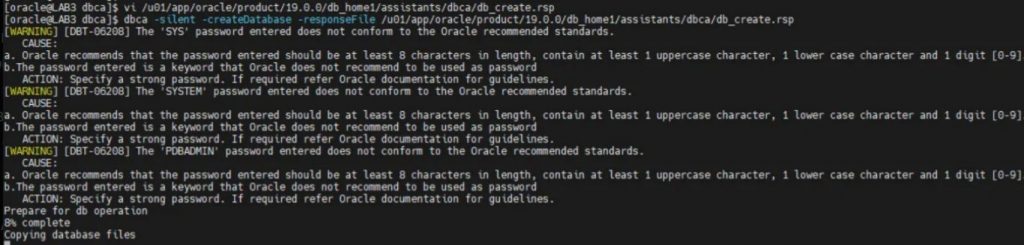
Once the response file is configured, as the oracle user, run the database creation in silent mode as shown below:
## Acessar diretório ORACLE_HOME
cd $ORACLE_HOME

## Executar instalação em Silent Mode
dbca -silent -createDatabase -responseFile /u01/app/oracle/product/19.0.0/db_home1/assistants/dbca/db_create.rsp
During the creation process, some warnings may appear because of password complexity; you can ignore them.
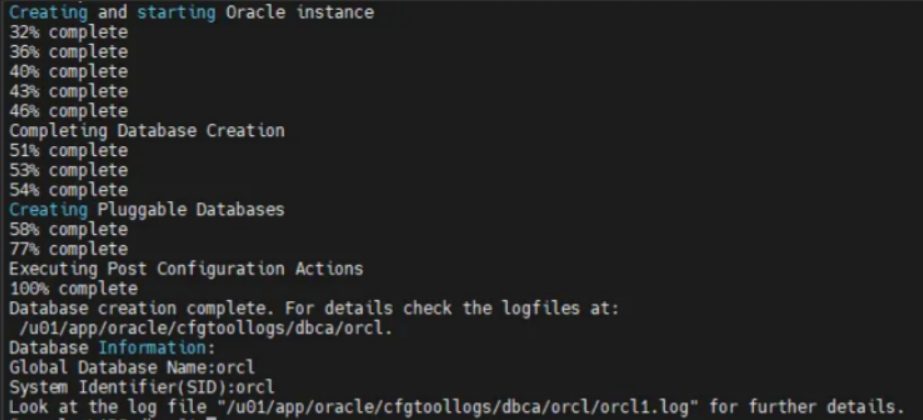
Database creation finished
3) Validating the database
You can check the /etc/oratab file for the database instances registered on the server; there we can see the new instance that was just created.
cat /etc/oratab | grep orcl
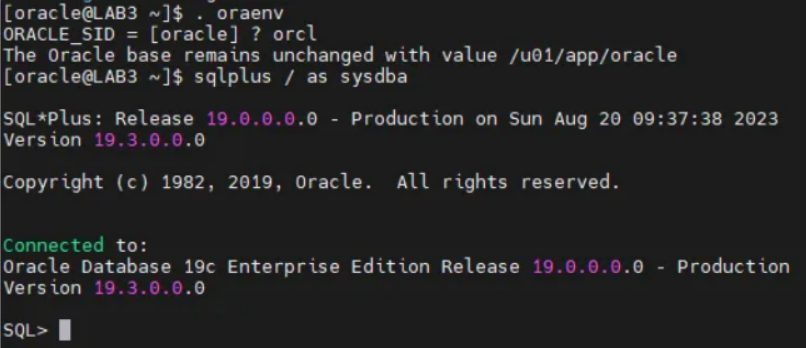
To access the database you need to set the environment variables ORACLE_HOME and ORACLE_SID; to do that, run the commands below.
## Configurar varíaveis de ambiente
. oraenv
orcl

## Acessar o banco de dados
sqlplus / as sysdba

## Verificar pluggables databases
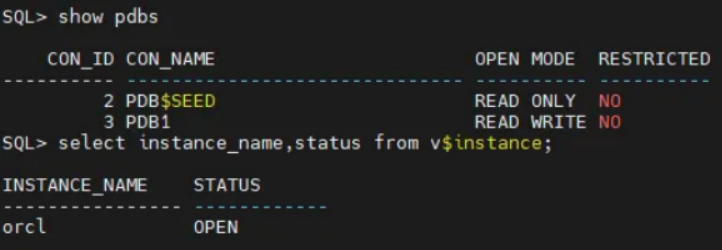
SQL> show pdbs

## Verificar estatus da instância
SQL> select instance_name,status from v$instance;
Set the variables and access the orcl instance
Check the instance status