

We recently had a request driven by LGPD, where we had to enable encryption at the database layer on a SQL Server instance. To start, we will use TDE (Transparent Data Encryption), which, as the name says, is transparent to our application.
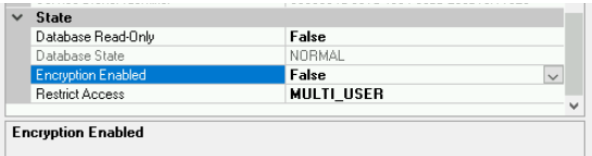
You can see that the database shows Encryption Enabled = False.
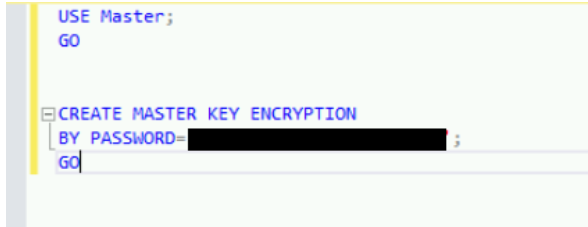
First we will create the Master Key. This key has a password, and it is very important to save it.
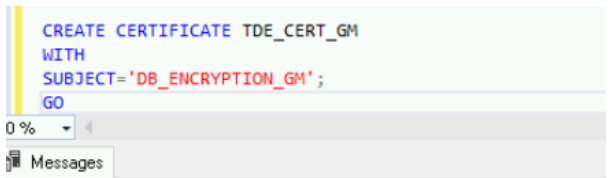
Then we will create the certificate that the Master Key will use.
Validating the certificate creation with the query.
SELECT name, pvt_key_encryption_type_desc, thumbprint FROM sys.certificates;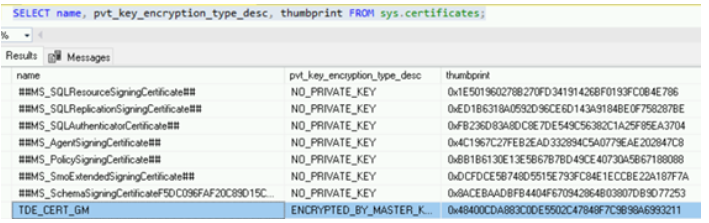
Now we need to connect to the database we are going to encrypt and create the encryption key inside that database, using the certificate we created in our master.
We are using the AES_256 algorithm
USE <DATABASE>;

CREATE DATABASE ENCRYPTION KEY WITH ALGORITHM = AES_256

ENCRYPTION BY SERVER CERTIFICATE TDE_CERT_GM;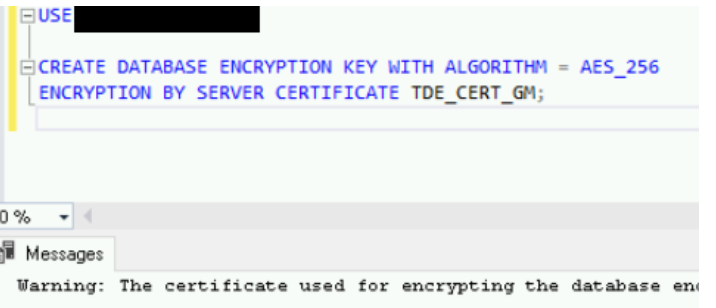
Notice that we received a warning when running the command: it says we should immediately back up this certificate and its private key, otherwise, in the event of a restore, we will no longer be able to open this database without them!
Warning: The certificate used for encrypting the database encryption key has not been backed up. You should immediately back up the certificate and the private key associated with the certificate. If the certificate ever becomes unavailable or if you must restore or attach the database on another server, you must have backups of both the certificate and the private key or you will not be able to open the database.Now let’s enable encryption on our database.
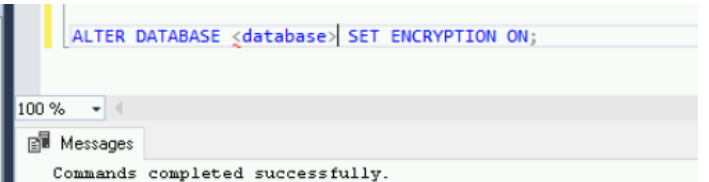
This step can take a while, depending on the size of your database, and you can track the progress with the query below.
DECLARE @state tinyint;<br>DECLARE @encyrption_progress<br>TABLE(sample_time DATETIME, percent_complete DECIMAL(5,2))SELECT @state = k.encryption_state<br>FROM sys.dm_database_encryption_keys k<br>INNER JOIN sys.databases d<br>ON k.database_id = d.database_id<br>WHERE d.name = ‘TestTDE’;WHILE @state != 3<br>BEGIN<br>INSERT INTO @encyrption_progress(sample_time, percent_complete)<br>SELECT GETDATE(), percent_complete<br>FROM sys.dm_database_encryption_keys k<br>INNER JOIN sys.databases d<br>ON k.database_id = d.database_id<br>WHERE d.name = ‘TestTDE’;WAITFOR delay ’00:00:01′;SELECT @state = k.encryption_state<br>FROM sys.dm_database_encryption_keys k<br>INNER JOIN sys.databases d<br>ON k.database_id = d.database_id<br>WHERE d.name = ‘TestTDE’;<br>ENDSELECT * FROM @encyrption_progress;And now our database is encrypted!

But before we wrap up, remember our warning?
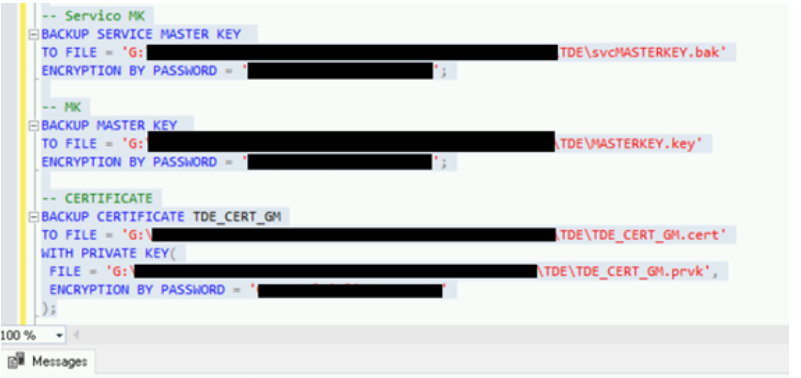
We need to back up our certificate and Master Key! Do not put this off, it can turn into a serious problem!
All of these items are tied to the master database, so we need to issue a use against that database, and you must use the same password you set when creating the Master Key.
use master;
Service MK:
BACKUP SERVICE MASTER KEY
TO FILE = ‘G:\TDE\svcMASTERKEY.bak’
ENCRYPTION BY PASSWORD = ‘XPTO’;MK:
BACKUP MASTER KEY
TO FILE = ‘G:\TDE\MASTERKEY.key’
ENCRYPTION BY PASSWORD = ‘XPTO’;CERTIFICATE:
BACKUP CERTIFICATE TDE_CERT_GM
TO FILE = ‘G:\TDE\TDE_CERT_GM.cert’
WITH PRIVATE KEY(
FILE = ‘G:\ TDE\TDE_CERT_GM.prvk’,
ENCRYPTION BY PASSWORD = ‘XPTO’
);
And that wraps up our TDE implementation. For other databases, you just need to repeat the procedure after the certificate has been created.
Remember to always store these backups, along with their passwords, in a safe place.
See you next time!
Created by: Matsuo Furushima