

Every implementation team knows the scene: a new client’s dump arrives and a ticket is born for the DBA. Create the PDB, set up the tablespaces, check the charset, run impdp, create the connection user, hand back the string. Every import crosses two teams and moves at the speed of the on-call queue.
We lived exactly this scenario with one of our clients, a technology company whose implementation team receives Oracle dumps from customers on a regular basis. The answer was to build AutoDump: a web application that runs the entire Data Pump import path, from downloading the file to a user ready to connect, without a single line of command. In this article I show the tool from the inside and the reasoning behind each choice.
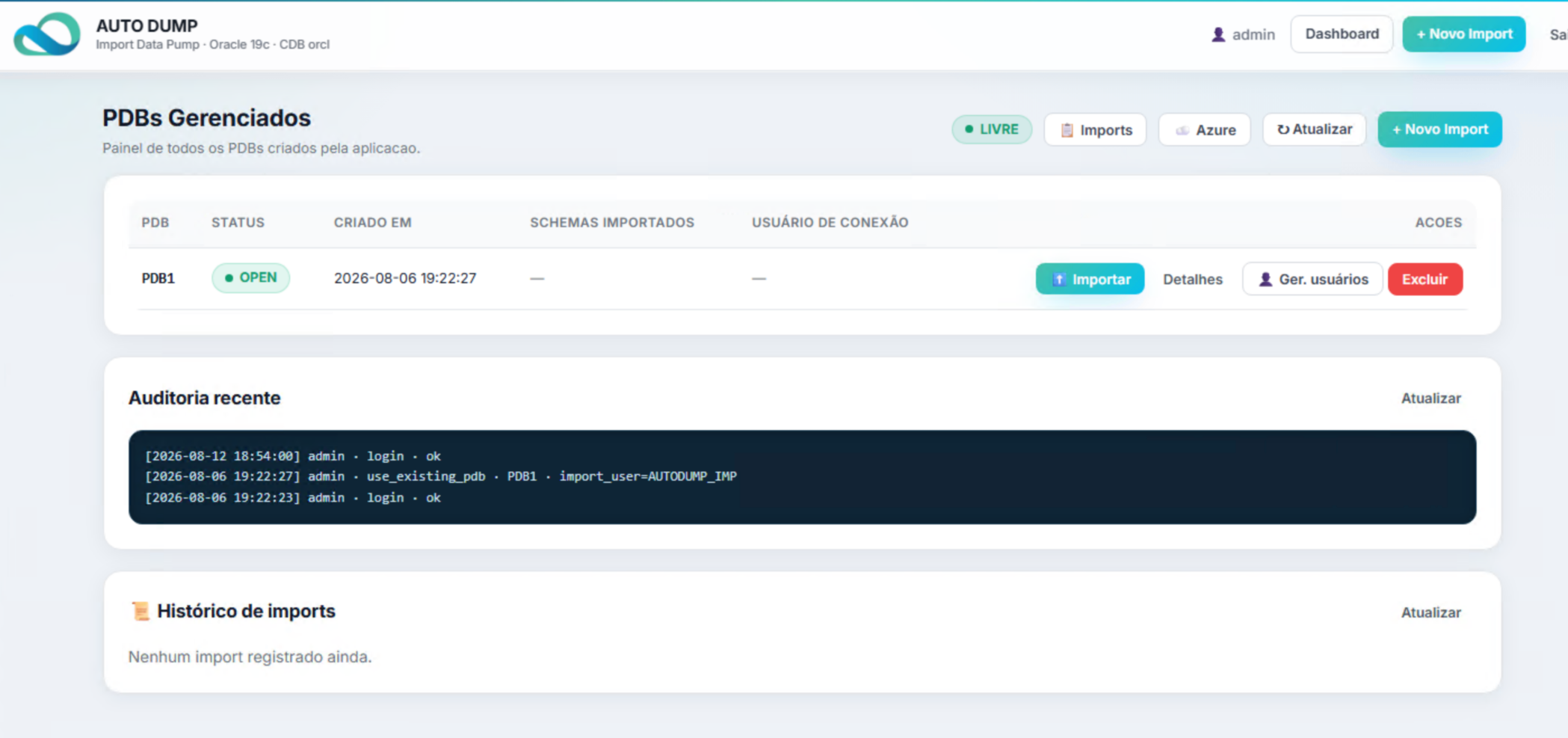
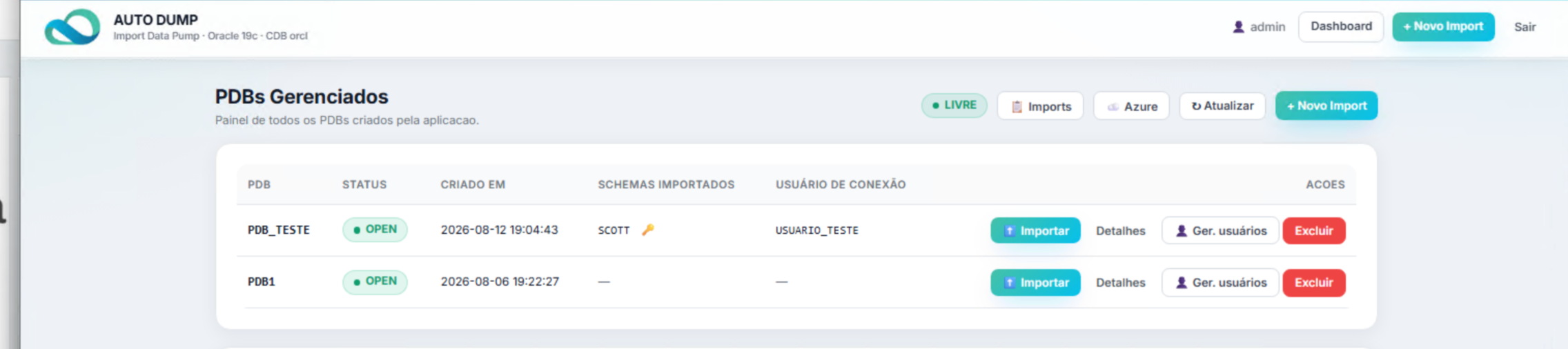
One panel, all the PDBs
AutoDump talks to an Oracle 19c multitenant instance and treats each import as a life cycle: the PDB is born through the application (or an existing PDB joins the list), receives the import, gets a connection user and stays visible on the panel with status, imported schemas and management actions. Recent audit entries and the import history live on the same screen: who did what, and when, without hunting for logs on a server.
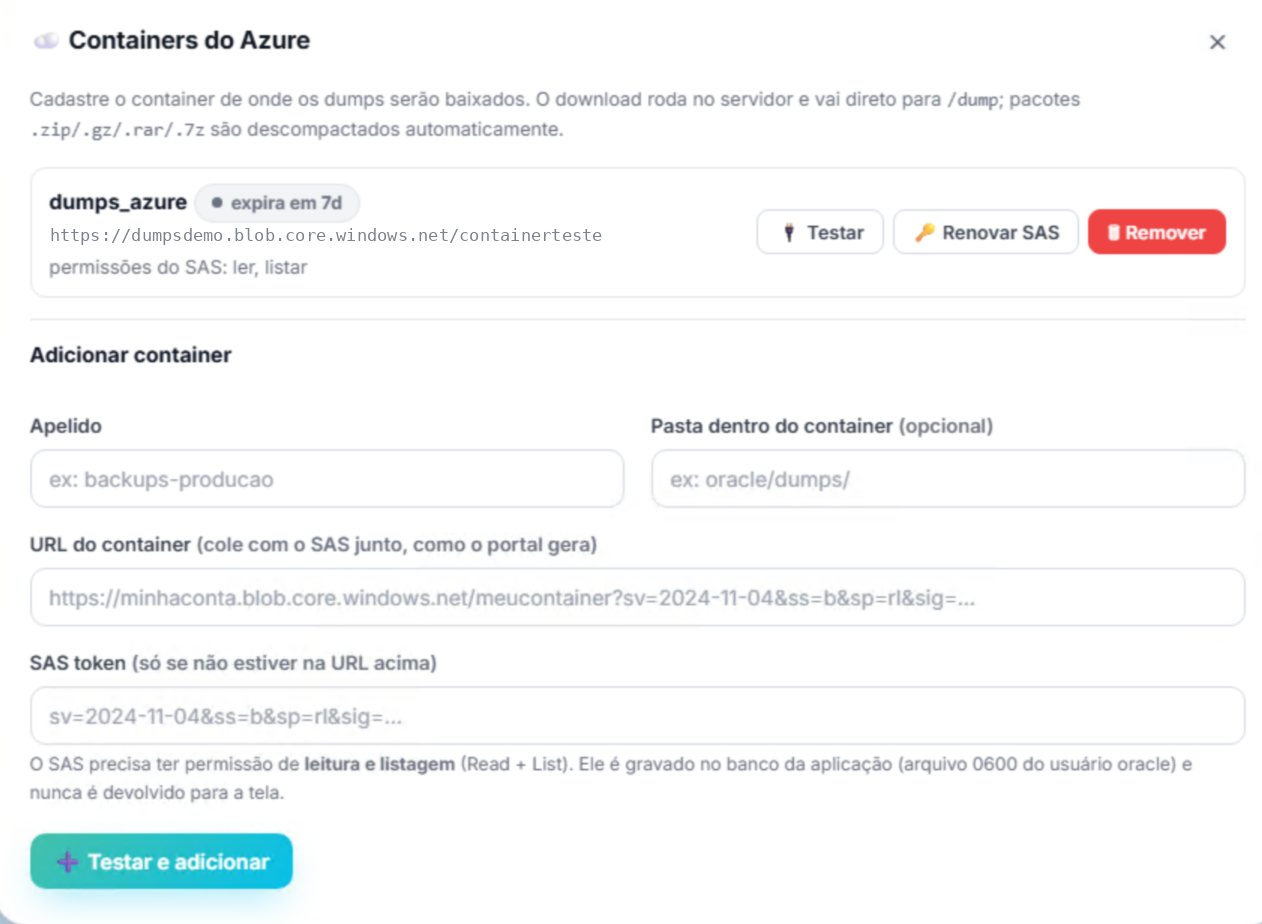
Dumps live in Azure? The download is direct
In the manual flow, the dump arrived through a portal, was downloaded to someone’s machine, unpacked and uploaded to the server. AutoDump cuts out those hops: Azure Blob Storage containers are registered on the screen itself, with the URL and the SAS exactly as the portal generates them, and the download runs on the server, straight into the dump directory. Packages in .zip, .gz, .rar and .7z are unpacked automatically.
Two security choices are part of the design: the SAS only needs read and list permissions, and it is stored in the application’s database, in a 0600 file owned by the oracle user. Once saved, it never returns to the screen; the interface shows only the container’s nickname and its expiration, with one-click renewal.
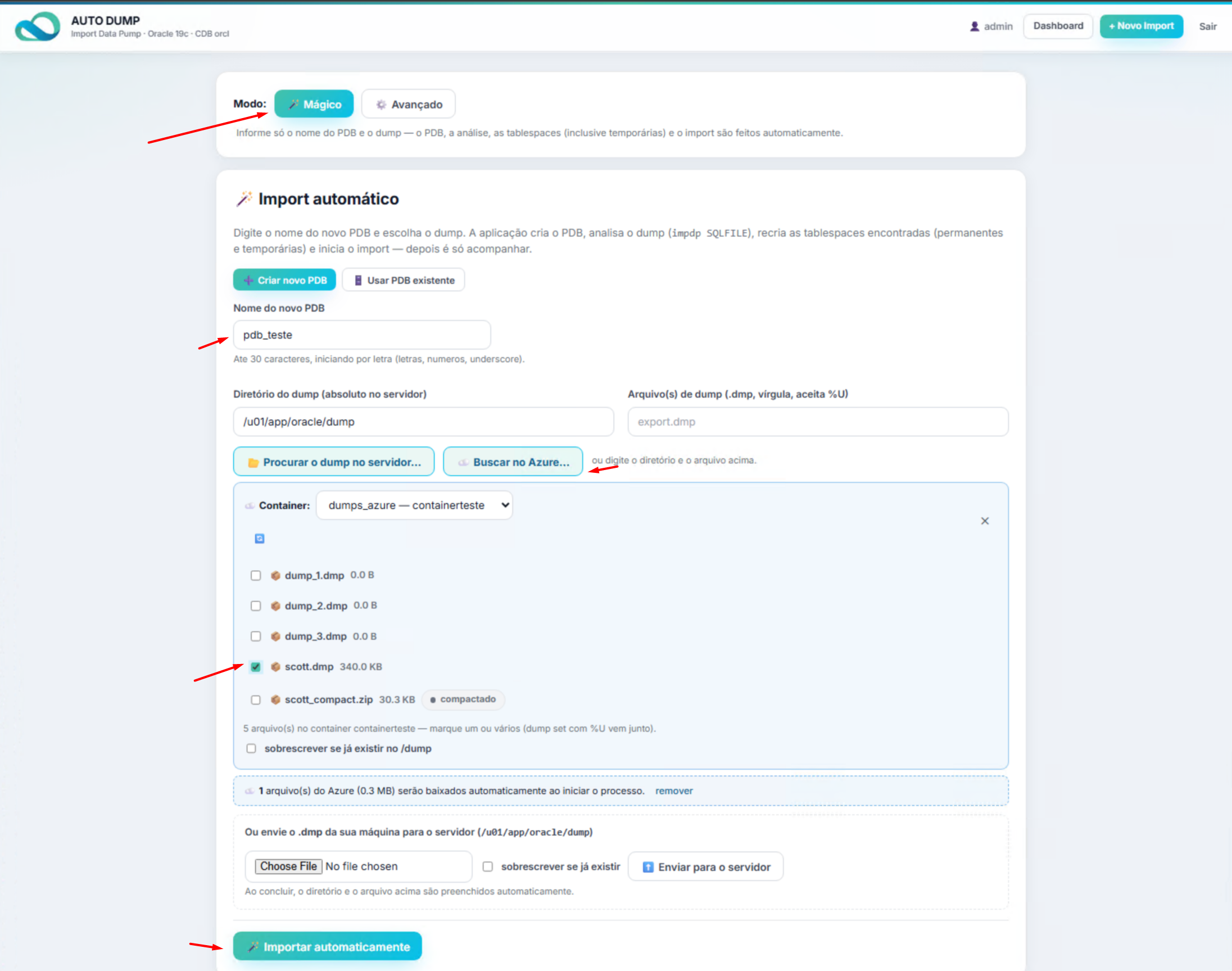
Magic mode: PDB name, dump and nothing else
Magic mode is the reason the tool exists. The operator enters the name of the new PDB (or picks an existing one), points to the dump on the server, in Azure or uploads it from their own machine, and clicks import. The application downloads the file, creates the PDB, analyzes the dump with impdp SQLFILE, recreates the tablespaces it finds, including the temporary ones, and fires the import.
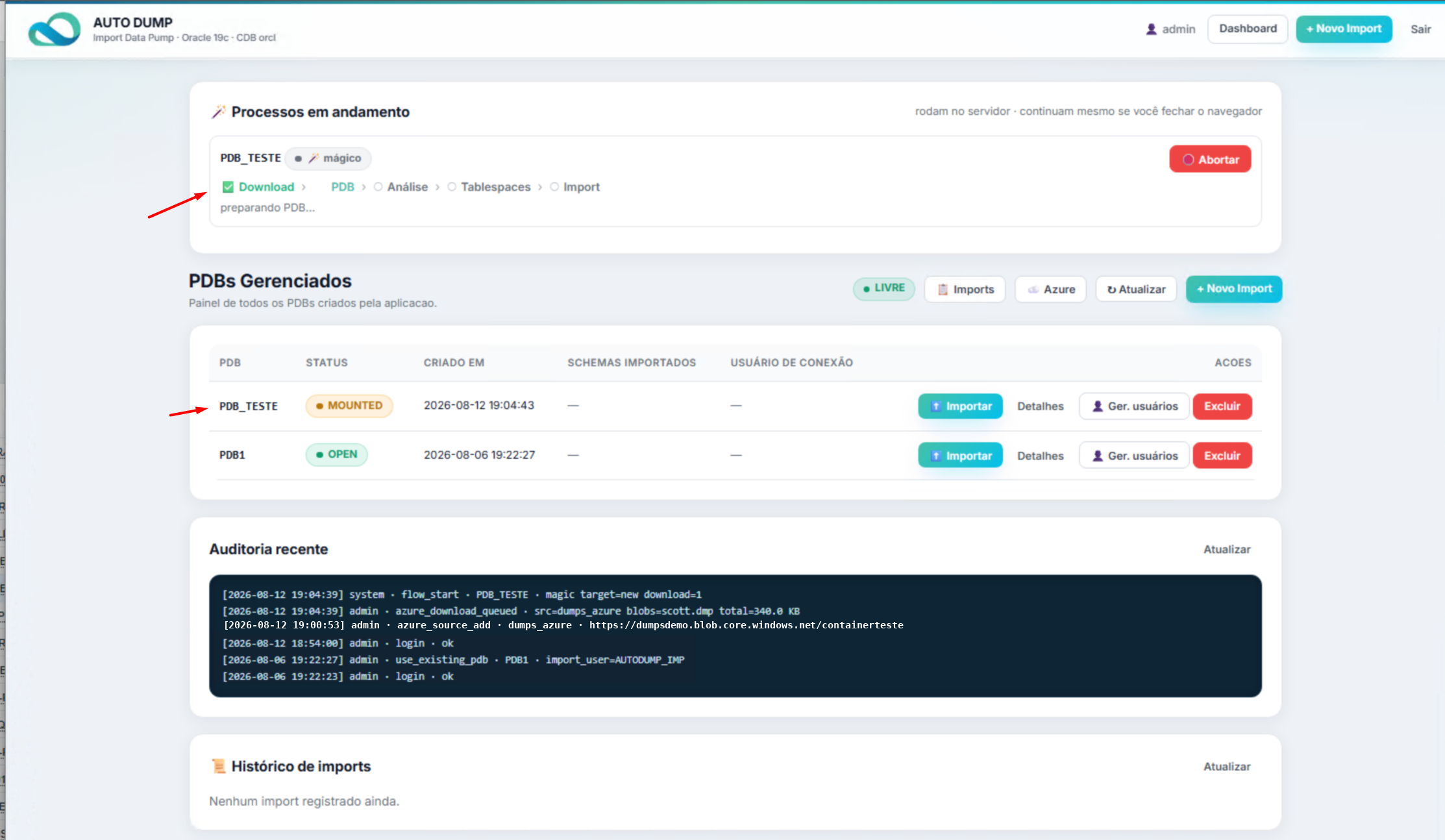
Each run becomes a row of steps on the screen: Download, PDB, Analysis, Tablespaces and Import, with the current step always visible and the option to abort. The processes run on the server, so closing the browser interrupts nothing; the team can follow along from any window. One import runs at a time, protecting the server from concurrency, and the rest wait in a queue. And every action, from login to container registration, lands in the audit trail.
At the end, user and TNS ready to go
Once the import finishes, what usually generates yet another ticket is still missing: access. AutoDump closes the cycle on the same screen, with connection users per PDB in three access profiles (Full, Read-only and DBA) and the tnsnames.ora block ready to copy, with the PDB’s host, port and service name.
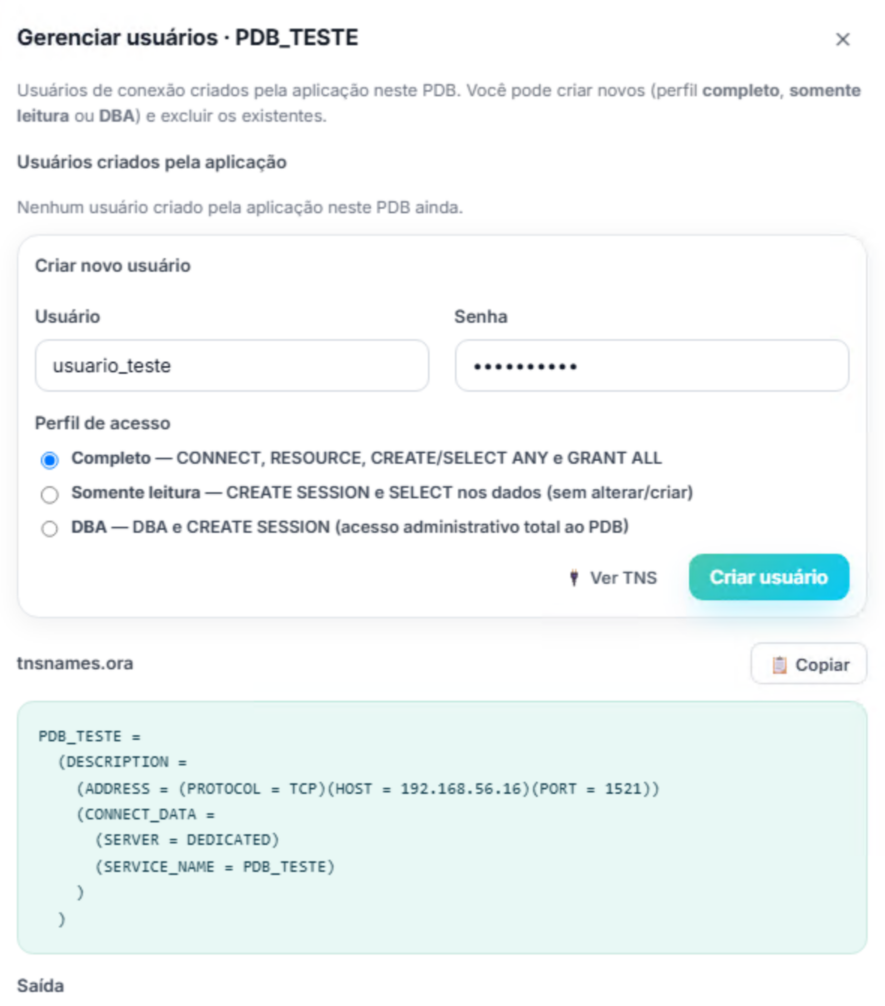
The panel now shows the PDB with the imported schema and the created user. From here on the environment sustains itself: whoever ran the implementation connects the application without depending on anyone.
Advanced mode: fine-grained control for those who know the trade
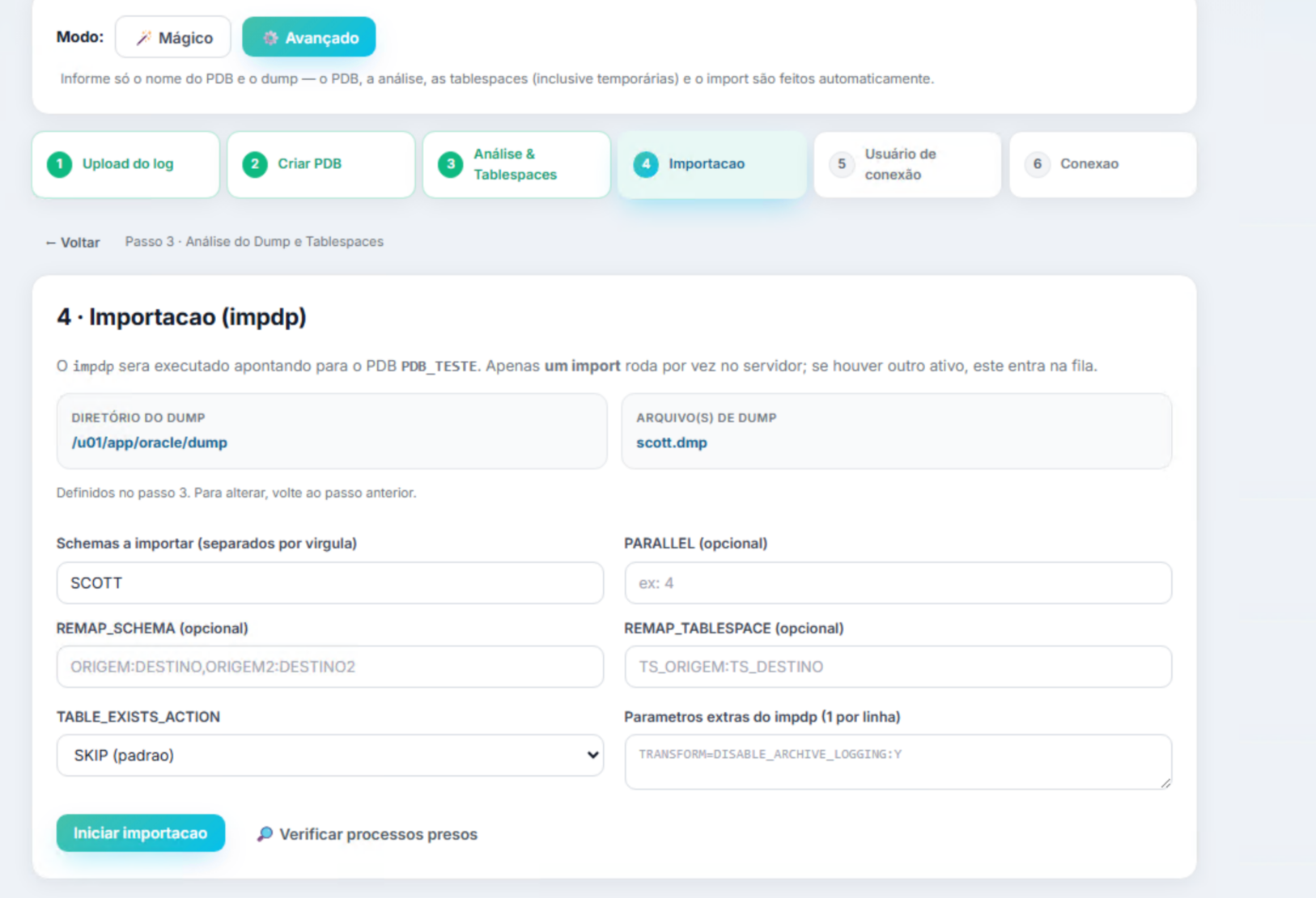
Not every import is smooth. For cases with remapping, filters or large dump sets, Advanced mode opens a six-step wizard: log upload, PDB creation, analysis and tablespaces, import, connection user and final connection.
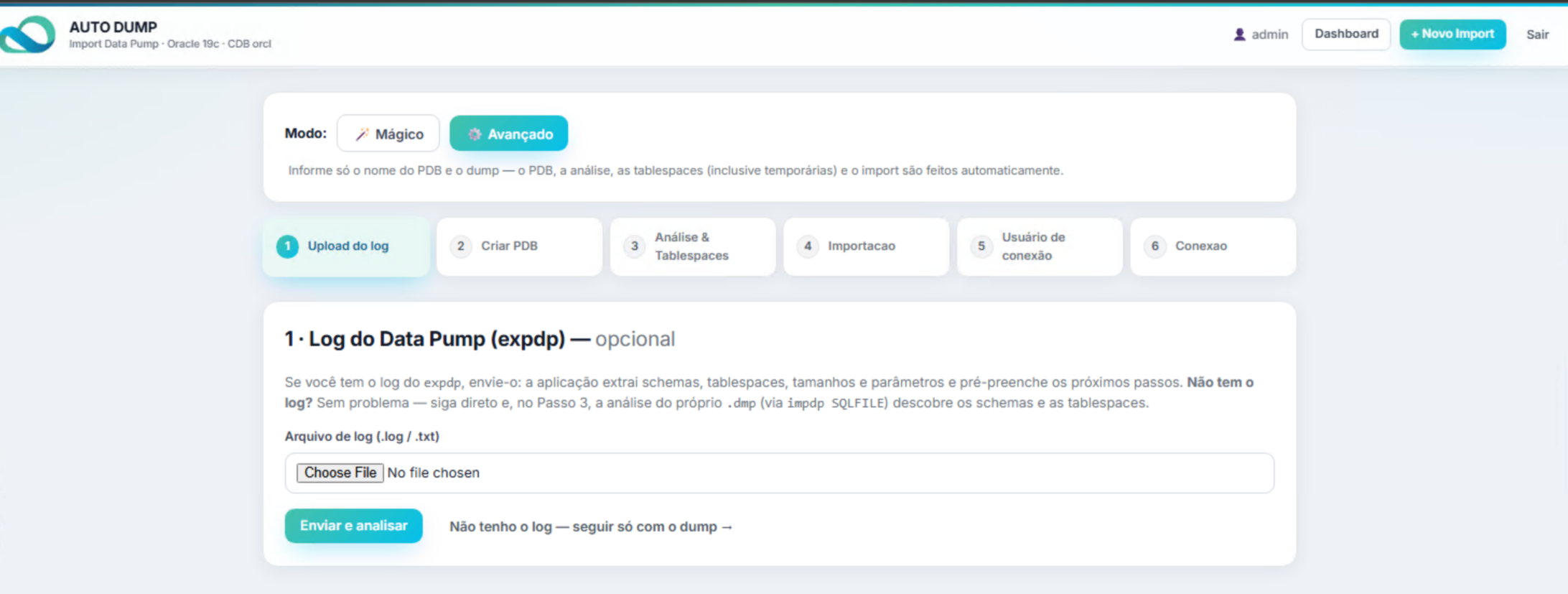
The first step accepts the expdp log, optionally: the application extracts schemas, tablespaces, sizes and parameters and pre-fills the rest of the path. Without the log, the analysis of the dump itself, via impdp SQLFILE, discovers schemas and tablespaces by reading metadata only, without importing anything. During the analysis, the impdp log appears live on the screen.
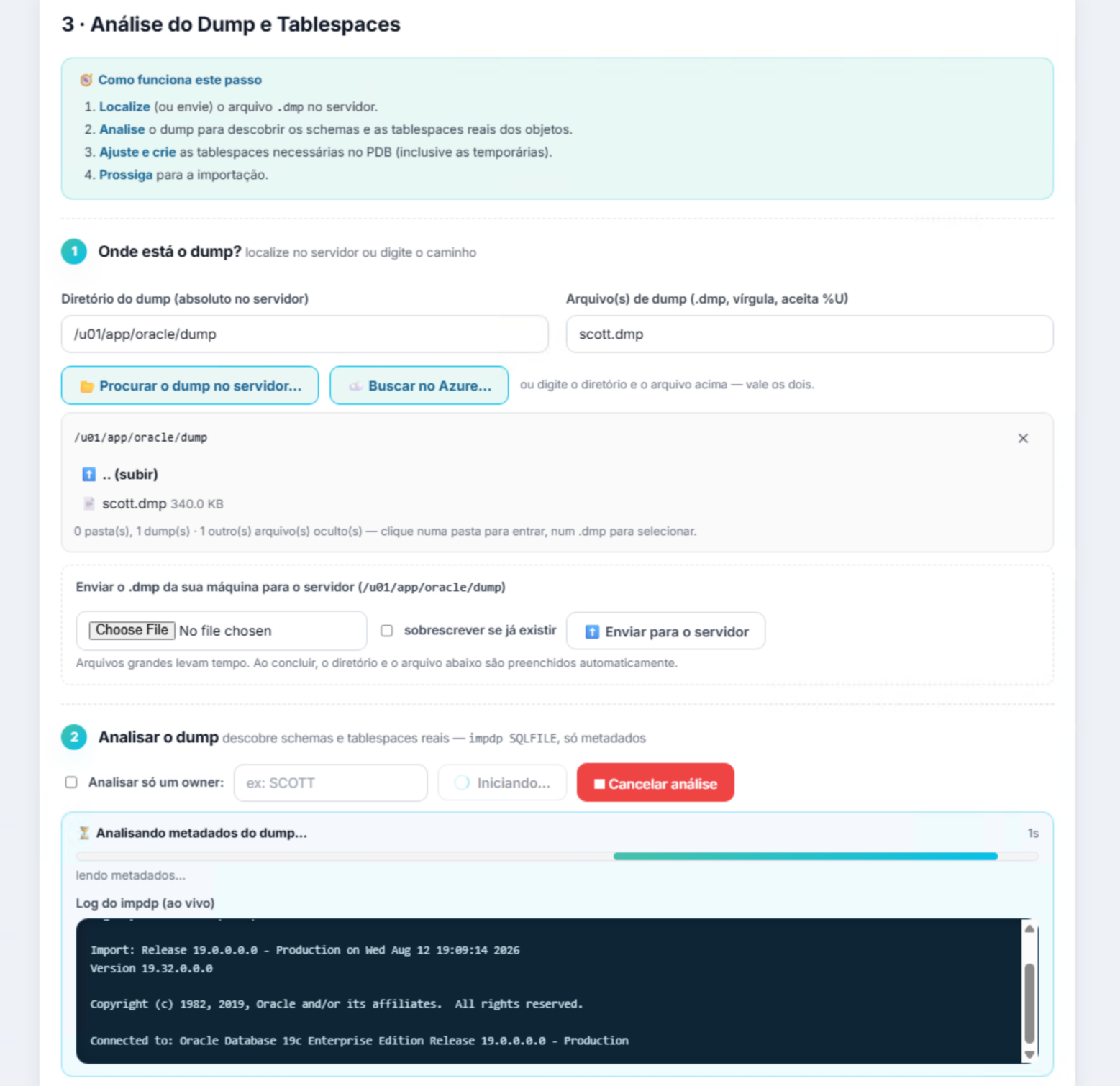
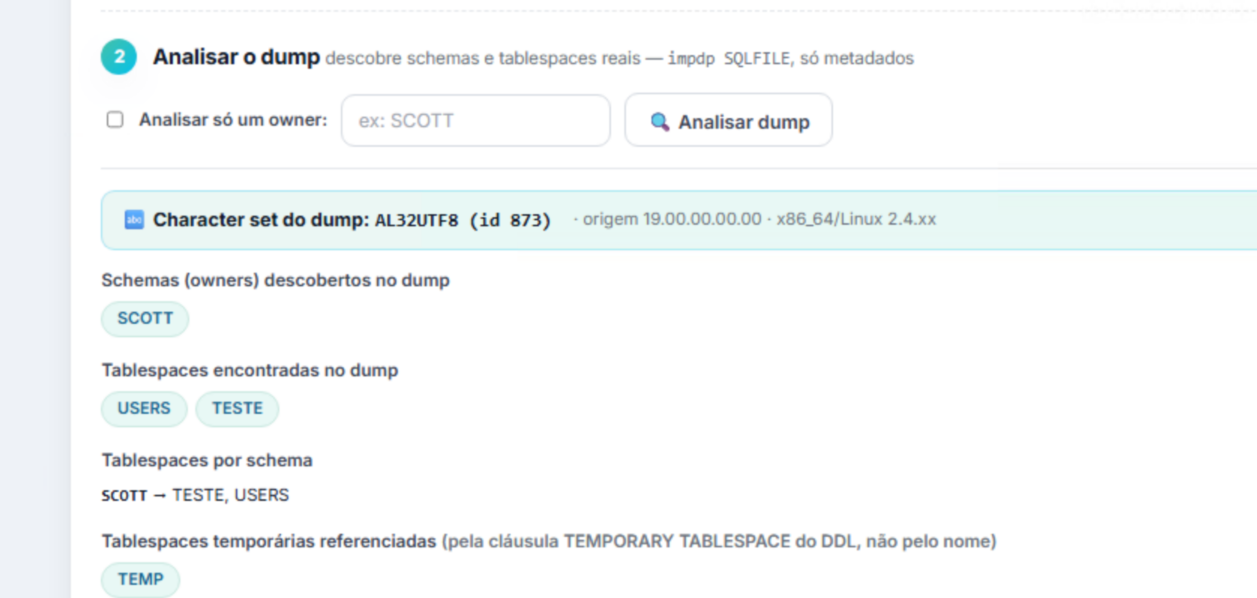
The result shows the dump’s character set (with its id), the origin, the discovered schemas, the tablespaces per schema and the temporary tablespaces referenced by the TEMPORARY TABLESPACE clause in the DDL, a detail that tends to break imports for anyone who recreates tablespaces by name alone.
In the import step, the operator picks the schemas and has at hand what impdp offers: REMAP_SCHEMA, REMAP_TABLESPACE, PARALLEL, TABLE_EXISTS_ACTION (SKIP by default) and free extra parameters, one per line, such as TRANSFORM=DISABLE_ARCHIVE_LOGGING:Y. It is the same engine as Magic mode, with the levers exposed.
What changes for the team
| Step | In the manual flow | With AutoDump |
|---|---|---|
| Dump arrival | Desktop download, unpacking and upload to the server | Straight from the Azure container to the server, already unpacked |
| PDB and tablespaces | Created by hand, guessing structures from the log | Created by the application from the dump analysis |
| Import | impdp in the terminal, followed by tailing the log | Triggered on the screen, with steps, queue and live log |
| Access | Hand-built user SQL script and tnsnames | Ready-made profiles and generated tnsnames.ora |
| Traceability | History scattered across tickets and terminals | Every action audited on the screen itself |
The practical effect is a change of ownership: the dump import stopped being a DBA task and became a routine of the implementation team itself, self-service from start to finish. The DBA steps in where they truly add value: in the design, the exceptions and the evolution of the tool.
Tailor-made automation is consulting, not an off-the-shelf product
AutoDump did not come out of a catalog. It was born inside the routine of a specific team, shaped by its pains: dumps in Azure, a 19c multitenant environment, people experienced in implementation and with no time to become database operators. That is why the tool gets it right: every screen mirrors a step that used to be a ticket, and every security decision, from the SAS kept off the screen to the access profiles, came from conversations with the people who operate it.
This is the same reasoning behind our project and managed support practices: understand the flow, automate the repetitive and leave the specialist where they make a difference.
Frequently asked questions
O que é o AutoDump?
É uma aplicação web construída pela Furushima para automatizar o import de dumps do Oracle Data Pump em ambiente 19c multitenant: ela cria o PDB, recria as tablespaces a partir da análise do dump, executa o impdp e entrega usuário de conexão e TNS prontos.
De onde a aplicação busca os dumps?
Do próprio servidor, de upload feito pela tela ou de containers do Azure Blob Storage cadastrados com SAS de leitura e listagem. Pacotes .zip, .gz, .rar e .7z são descompactados automaticamente, e o SAS fica guardado no servidor, sem nunca voltar para a tela.
Preciso dominar o Data Pump para usar?
Não. No modo Mágico basta dar o nome do PDB e escolher o dump: análise, tablespaces e import acontecem sozinhos. Quem é do ramo pode usar o modo Avançado, com REMAP_SCHEMA, REMAP_TABLESPACE, PARALLEL, TABLE_EXISTS_ACTION e parâmetros extras do impdp.
A Furushima constrói automações assim para outros cenários?
Sim. O AutoDump nasceu dentro de um projeto de consultoria, desenhado para o fluxo daquele time. Construímos automações sob medida para rotinas de banco de dados, cloud e operação, sempre com auditoria e segurança de acesso no desenho.
AutoDump became routine for the team that commissioned it, and the summary of that story is on our case studies page. If your operation also has a repetitive routine waiting for automation, get to know our database projects and architecture practice and our cloud consulting, or talk directly to a specialist: you describe the flow and leave the conversation with an honest path forward.